NN/g researchers conducted usability tests and field studies on intranets at 15 different organizations around the world. A recurring theme emerged in the findings: at many organizations, intranet search wasn’t effective enough.
During an interview, one intranet team member said, “Intranet search is a huge thing for our employees and many of them prefer to search. Because of that, we have to get our search right. When people become frustrated by it, they’re not likely to engage with search or even the intranet again.” In this article, we'll outline design and process areas to focus on to improve your intranet-search experience for employees.
High Expectations but Low Confidence in Intranet Search
Employees’ initial expectations for intranet search were high. They expected the intranet’s search to work like Google and were repeatedly disappointed when it didn’t. Participants began information-seeking tasks with high hopes for the intranet’s search results, only to lose confidence when it continually failed to return productive results. Lack of success degraded trust and led employees to stop using search altogether, as they assumed it wouldn’t work. They usually turned to the navigation next to find what they needed and took much longer to complete their tasks.
Design Practices for Improving Intranet Search
- Use a search box, not just a search icon. Place it in the upper right corner of the global navigation menu. We observed an overreliance on the magnifying-glass icon (on both desktop and mobile versions of the intranet) to minimally signify search functionality. This design was problematic because it made the search less visible and forced users to click on the magnifying glass icon to expand the search box. Users had to then click again to set their cursor’s focus in the search box to type their keywords. Having an exposed search bar, placed familiarly in the upper right corner of the intranet (or at the very top on mobile), primes users to know search is available and speeds up the task of performing a search. It’s also consistent with what your employees have encountered on thousands of other websites.
- Use a single search box for content, people, and tools. Several organizations had multiple search boxes, placed all over the intranet. These caused confusion for employees as some of the search boxes searched for content, while others searched for people, or within a scoped section of the intranet. Avoid introducing multiple instances of intranet search; use one simple search box and work towards indexing all content, people, and tools across the digital workplace. Having multiple, fragmented search experiences rarely leads to an improved intranet search. In fact, in many of the cases we observed, it made things worse. (In 2003, we recommended separating employee search and content search. This is one of the rare cases where usability guidelines change over time, due to changes in technology and usage patterns. As noted, we now recommend unified intranet search).
- Include carefully-designed placeholder text in the search box. We often get questions about whether to include placeholder text in the search box. Placeholder text inside of the search box is helpful if it tells users where exactly they’re searching across a vast array of intranet content, people, and tools. However, the placeholder text must strike the proper balance of being accessible, yet subtle enough to avoid appearing as if the search field is already pre-filled with text. The placeholder text should remain in the field when users focus their cursor in it, and only when the user starts typing the keyword, should it disappear. If users delete their keyword, the placeholder text should promptly return.
Video of prototype example: Placeholder text should tell users what they can search for and only disappear when the user begins typing their keyword. It should reappear if they delete their keyword. - Use type-ahead search suggestions that are quick, automatic, and non-intrusive. Employees wanted to move fast while searching the intranet. When search suggestions automatically appeared and were relevant, users clicked on a suggestion and sometimes even bypassed the search-results page entirely, if the suggestion was a result that took them straight to the desired page. However, suggested search results didn’t always play nicely with users’ natural inclination to hit Enter to execute their search. For example, when the search suggestions were slow to load and appeared just as the user hit Enter, if the top suggestion in the list was selected by default, the user would accidentally trigger a search for that term, instead of the keyword they typed in the search box. Let users choose the suggestion that matches their intent and always preserve the ability to search on the original keyword they entered in the search box. Test the timing of your suggested search by watching employees interact with it; if it's too slow, it will diminish the intranet-search experience.
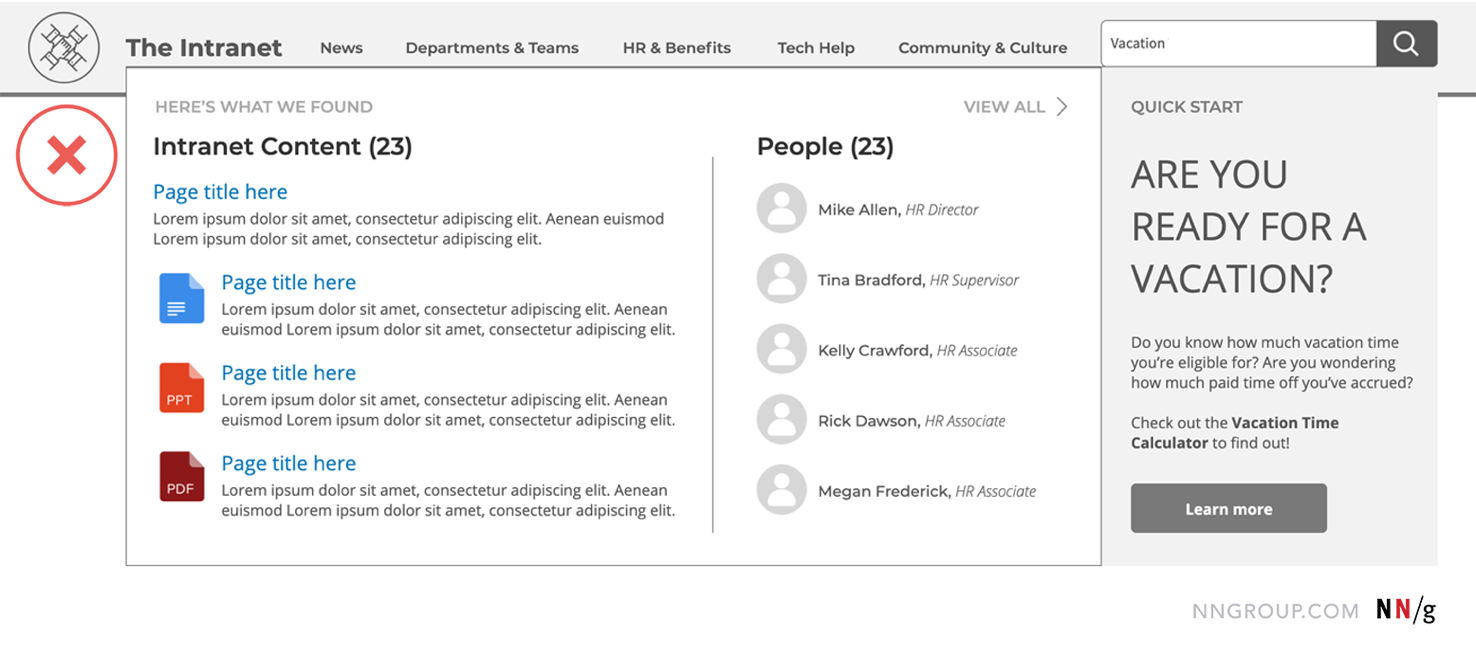
Wireframe example: Employees were overloaded with information when they were trying to select a search suggestion in this type of design. Video of prototype example: From our research, search suggestions worked best when they were simple, timely, and relevant, as in this example prototype. Preserve the ability for users select a suggestion or execute a search for the original keyword entered. - The intranet-search page should be clean and uncluttered. Distinguish results for content, information about people, and links to digital workplace tools. Keeping intranet search results simple is the key to achieving an uncluttered layout. Sections for people and tools should also appear in separate-but-visible columns. For people results, include the employee’s name, photo, title, location, email address, and phone number with a link to their full profile. People information should ideally populate from a central directory that’s updated often. If that’s not possible, ensure employees to keep their profile information up to date. For tools or external-site results, include the name of the tool or site, a brief description of its purpose, and links to details and help. Content on intranet search-results pages should rank based on relevance and recency, as recent results are often more relevant and credible. Make sure HTML pages always rank above any PDFs or other non-HTML formats such as Word documents, presentations, or spreadsheets. For policies or documents that lack accompanying HTML pages, consider creating HTML gateway pages that summarize the main points and provide a link to access or download the full document. In this way, your intranet search experience can index the HTML gateway page, instead of taking users straight into a jarring PDF or presentation. Another helpful design element to include are labeled icons alongside intranet-search results to visually separate PDFs and documents from intranet pages. These icons assisted employees in quickly scanning the results to see which ones were relevant. The icons also helped to set correct user expectations and prevented unwelcome surprises, like a PDF popping up.
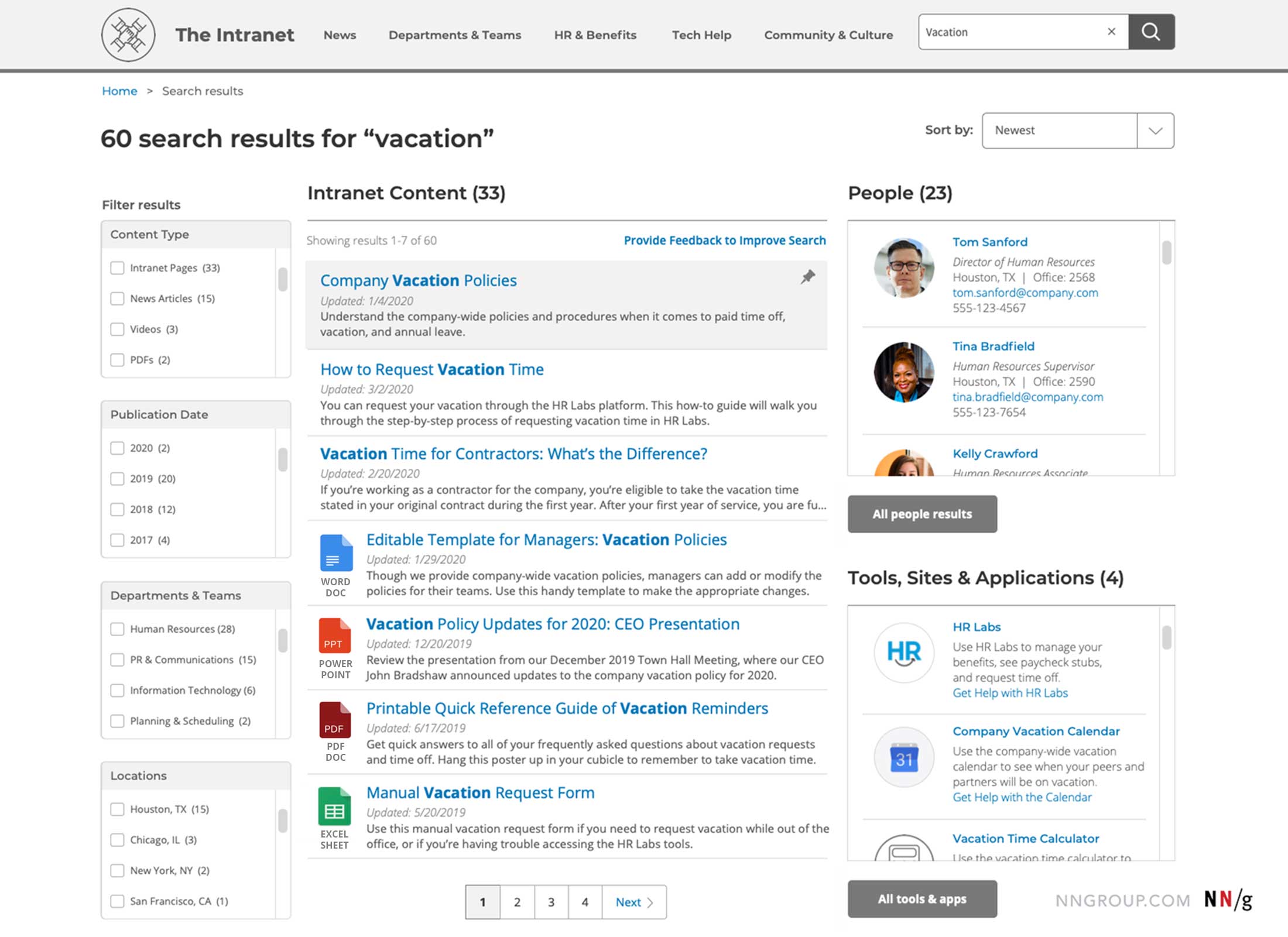
An example wireframe of an intranet search results page with a simple layout that includes results for content, people, and tools. - All intranet pages should have coherent metadata, including page titles, meta descriptions, and meta tags. We observed several instances of meaningless metadata, or in other words, search-results pages that contained a smattering of sloppy metadata, including page titles that were vague, redundant, or incoherent and meta descriptions that in no way helped employees distinguish one page from another. We discovered that a lack of process for naming documents and intranet pages, as well as nonexistent procedures for adding metadata led to this trend. Many times, content managers didn’t even know they needed to add metadata or how and where to do it. Make sure your content creators and managers know how to write and enter metadata, as well as why it’s important. Clear, descriptive metadata that aligns with employees’ mental models will help them quickly find the specific information or pages they need in search results. Without it, they’ll be left guessing or wasting time on trial-and-error attempts at result selection. Intranet search is only as good as the content behind it, so don’t leave this foundational design element behind. Another reason to pay attention to metadata is the modern reliance on browser tabs: employees often have many different browser tabs open at the same time. Clearly written page titles help people quickly figure out which of their many tabs are relevant for their current need.
- Dates alongside results help employees assess the recency and reliability of information. Many of our research participants checked for either the publication date or the date information was last updated to understand if it was still relevant. When one participant searched for training for a new teammate, she used the keyword phrase “onboarding training.” After reviewing the first two results, she said, “So that’s from a year ago, and that’s probably going to be too old.” Even dates as recent as one or two years ago deterred people from clicking. This expectation for fresh, recent, and reliable content substantiates the importance of auditing and retiring outdated intranet content as part of your content-management processes. The quantity of content on the intranet will directly impact the quality of the search experience. The best intranets often have a strict unpublishing process and establish necessary rules for removing content in order to improve search and avoid overcrowding the search results with old content. Content types such as classifieds could automatically unpublish after 30 days, while announcements and articles not worthy of the archives could automatically unpublish after one year.
- Sort and filter values should be relevant and properly reorder or narrow the scope of the results. Filters should sit on the left side of the intranet search-results page, display as expanded by default, and include checkboxes to support multiselect functionality. The number of items that correspond to a given refinement value should also be included in the filters’ design. A simple dropdown to sort the page should also appear in the upper right corner of the results page.The most helpful filters for employees in our study were those for content type (webpage, article, video, PDF, form, policy, training, application, etc.), publication dates, related department, and location for organizations with multiple locations. In some cases, filters were dynamic — they changed based upon the content being searched. Unhelpful filters included those for author or those that seemed redundant to other filter categories (for example, having filters for both topics and tags). Simple sorting options for newest and oldest worked best.
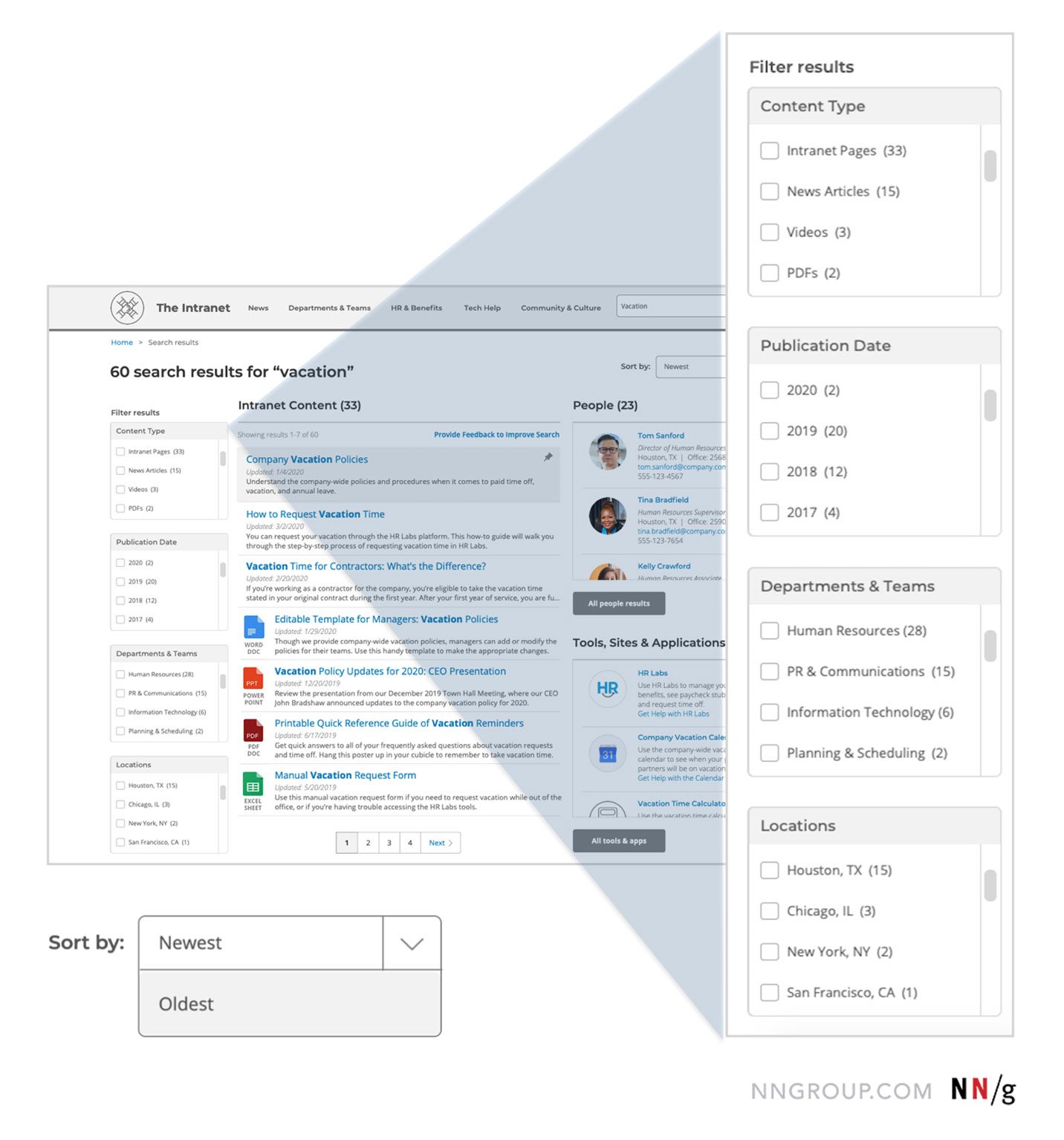
An example wireframe of the filters and sorting dropdown on an intranet search results page that were the most valuable and helpful to employees in our study. - Feature or pin relevant results at the top of search results pages. Pinned results ensure the most relevant content appears at the top of search results, for a set of predetermined keywords or criteria. We observed that there was often a mismatch between the words that employees used in their queries and the words used on the intranet to describe the same or similar topics. If employees didn’t use the exact same phrasing as that on the intranet, they often couldn’t find the correct results. Users had to think hard to recall the correct keyword to search and find what they needed. They’d memorize the terms that worked in the past or develop an overreliance on saved pages and bookmarks, to avoid search. One user said, “That’s why I’m so dependent on the things I’ve saved. It takes too long to find it under someone else's definition that doesn’t meet my definition.” Pinned results help users find the right content, at the top of the results page, even if they don’t use the exact same keywords as the intranet. Seek to understand people’s intent with certain keywords to drive what shows in the pinned results. For example, when an employee searched the intranet for daycare, he received two results, and a link to the external benefits site (where he eventually ended up) was pinned to the top of the page. He said, “That’s very helpful, there’s a highlighted box that says, childcare vouchers right there." In another example, an intranet content manager described how she modified the results in the content management system for the search term credit card to manipulate the top results. She said, “That’s one example where we want to apply the pinned result. There are 5,000 results for that term, so we hoped that by adding the featured link at the top, it would help narrow down the search results for people.” For some searches, such as HR policies, results can even be pinned based on the user’s location, since that information can vary.
- Did you mean suggestions help users quickly recover from typographical errors. Typos and partial search terms are common, and it’s critical that the intranet search support these as much as possible. For example, an employee misspelled the phrase business class when looking for her organization’s travel-expense policies. She didn’t receive any results for the typo, nor did she get suggestions for alternative searches (e.g., Your search for ‘buisiness class’ returned no results. Showing results for ‘business class’). She eventually gave up on finding the policy altogether, as she didn’t even notice the typo. Relevant results should display for common typos, but also offer Did you mean suggestions when your users’ intent isn’t completely clear from the keyword alone. Always allow users to revert to their original keyword, in case the suggestion is wrong. Add support for synonyms (organogram vs. org chart), alternate spellings (child care vs. childcare), and terms that might have multiple meanings, such as insurance (health insurance vs. business insurance). Use analytics and search logs to further understand common typos and display the relevant results in those cases. In one favorable example, a user mistakenly searched for Yammar instead of Yammer, and the intranet recommended an alternate keyword, which the employee selected. Suggestions and links to the correct terms help users quickly recover from errors.
- Use pagination to display additional results instead of lazy loading or progressive reveals. Avoid using lazy loading or infinite scroll on your intranet’s search-results pages. You also shouldn’t force users to keep clicking on a More button to progressively reveal more results. Those methods will waste employees’ time and leave them wondering where the results will end. Use simple, straightforward pagination on your search-results pages. It’s much more accessible and keeps the user in control. When users have limited but relevant results, it’s easier to determine if what they’re searching for is actually on the page or if they need to progress to the next page of results.
Process Practices to Improve Intranet Search
Ensuring that search returns relevant results is an ongoing challenge for every intranet. Good search begins with great content that’s added when needed, removed when it’s not, and proactively updated when there are changes. Content that’s organized logically in the site’s information architecture (and menus), crosslinked from relevant pages, and accompanied by strong, careful metadata will set your search up for success.
- Conduct regular usability testing on your intranet’s search experience to understand why it’s falling short. Reach out to colleagues through video calls with screen share turned on, so they can explain how the search falls short of expectations. Couple this qualitative knowledge with an analysis of search logs and analytics to get a clear picture of what’s going wrong, where, and when.
- Benchmark the top-100 most searched keywords and review terms that yield no results. This analysis will help you highlight content areas that need work. A spike in a specific keyword or keywords with no results may signal an opportunity to create or improve content.
- Add a link to a feedback form on your intranet’s search-results page, so employees can report what failed in the moment. Analyze what users report through the feedback form and produce a monthly report that tracks the relevance of results. In the feedback form, ask users what they were trying to find and the exact words they entered. These cases will provide efficient insights into how to improve search. For example, one team received the feedback, “I am searching by employee number and I can’t find a colleague,” which eventually led to offering the ability to search by an employee ID number.
- Tell employees when and how search has been updated or improved. For example, at one organization, an intranet team member said, “People used to not use search at all because it didn’t work. People are using it now and finding that the page they go directly to contains the answer.” A user at the same organization said, “Because of my past experience with using search, I usually don’t even bother with it. But recently, it’s worked out for me a few times, so maybe there’s a change there.” The organization used email notifications, time-sensitive banners, and featured news stories on the intranet’s homepage to create awareness about the changes to search.
Conclusion
The design of your intranet search and the processes behind it are tightly coupled. You can have all of the right design elements in place, but if the content creation, management, and publication processes don’t support the design, the intranet search will fail. Conversely, if the behind-the-scenes processes are in place, but the design excludes essential elements, the intranet design will also fall short. If left ignored, problems with search will lead employees to give up on it (and the intranet), while making incremental improvements over time will build confidence, trust, and engagement among employees.