
Websites are often designed with a mobile-first or mobile-focused approach. But sites that are optimized for mobile don’t always translate well to larger screens. Those larger screens may be tablets, laptops, desktops or even 30-inch monitors with 4K resolution. Users of these high-end devices should also be supported by your design.
Previously, we discussed that images designed for large screens often don’t work on small screens. You may have read that article and thought, “My mobile images look great – not to worry.” Now it’s time to see if your desktop images also look great.
Images that work well on small screens may not be appropriate for big ones. They may become too large in relation to surrounding page elements, force extra scrolling, or lose impact. When you’re designing for multiple page sizes, you need to consider orientation (horizontal or vertical), aspect ratio (the proportional relationship between the width and height of the image), size and relationship to surrounding elemetns carefully.
- Common Problem #1: Disproportionate Scaling
- Common Problem #2: Cropping
- Common Problem #3: Repositioning
- Solution #1: Scale and Crop
- Solution #2: Use Images that Work in Different Aspect Ratios and Dimensions
- Solution #3: Set a Maximum Dimension for the Image
- Solution #4: Swap or Remove Images
- Don't Only Design for the Breakpoints
Common Problem #1: Disproportionate Scaling
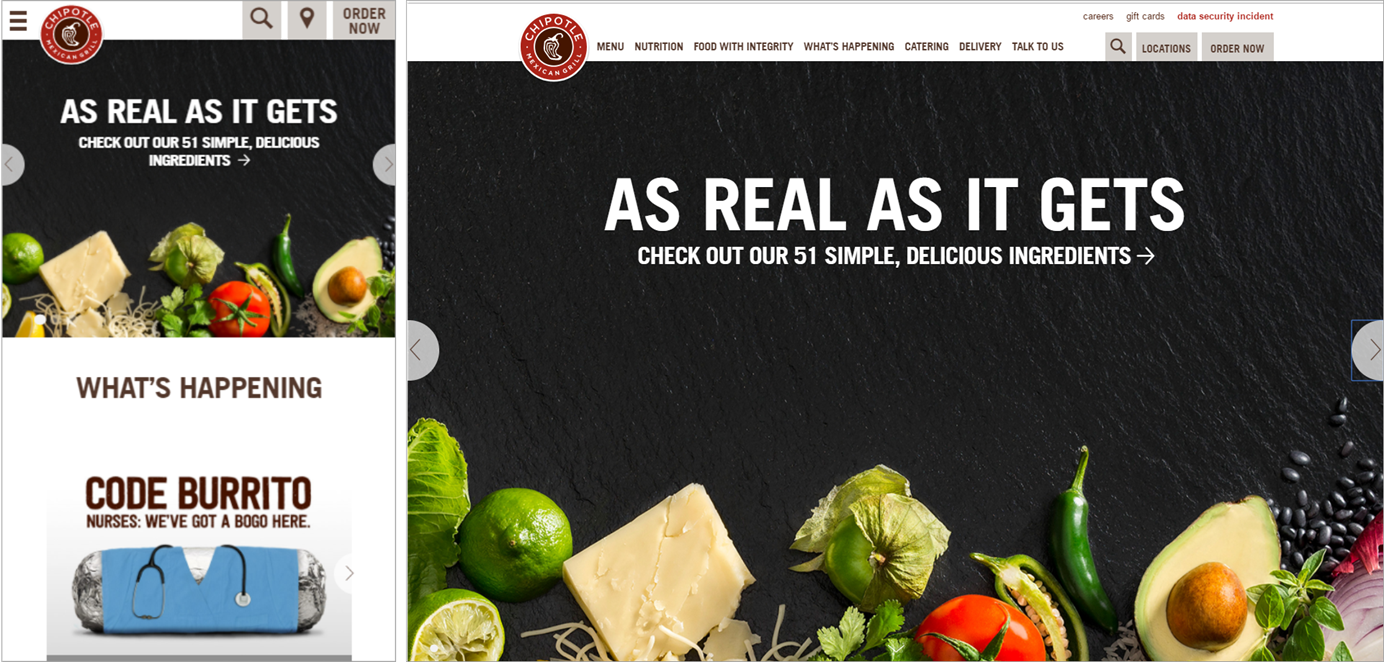
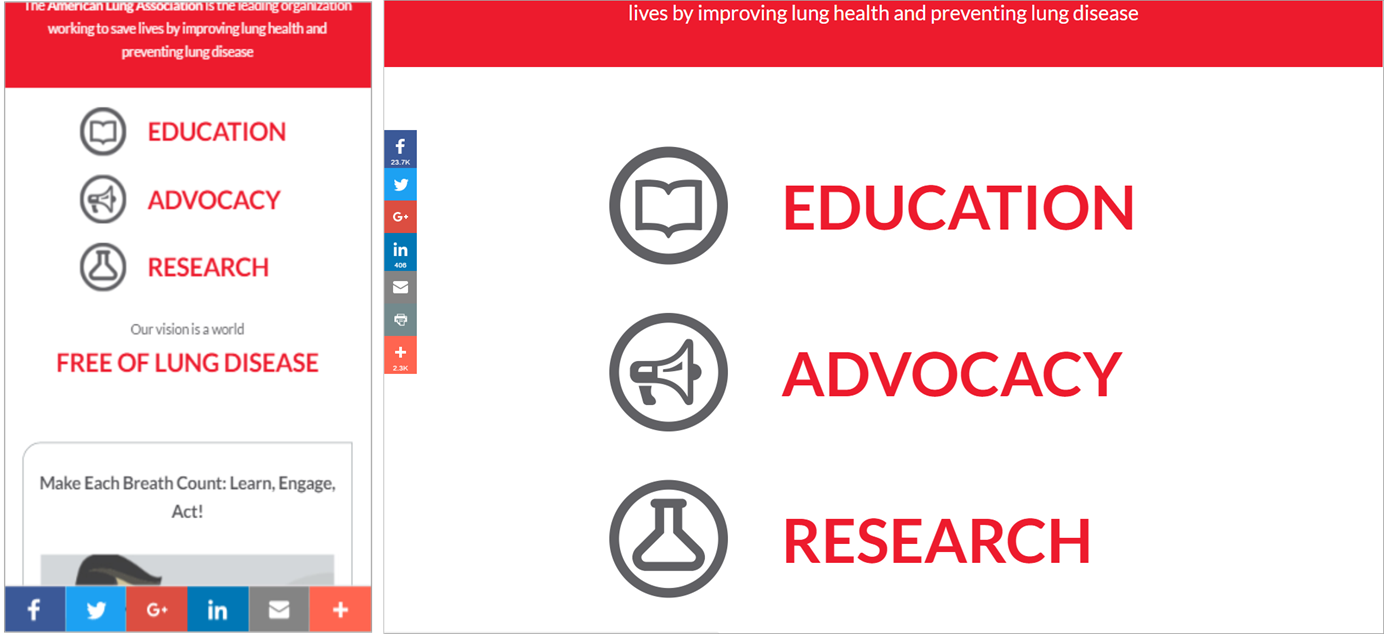
In order to resize an image to fit a larger screen, some designs simply expand the height and width of the image to fill the new container. This procedure frequently results in a picture that is disproportionately large in relation to surrounding page elements (headlines, text or navigation). It can cause three main problems:
- Low information density: The information value of many images is not high enough to justify the space they take up when enlarged for a big screen. This wasted screen space could be used to show more things, rather than just bigger things.
- Scrolling: To get past the image and see some content, users need to scroll. The image becomes an obstacle to get around and increases interaction cost.
- Poor image quality: Low-resolution images may become pixelated or blurry at larger sizes. In general, any weakness in an image become more apparent, the larger it becomes.
Common Problem #2: Cropping
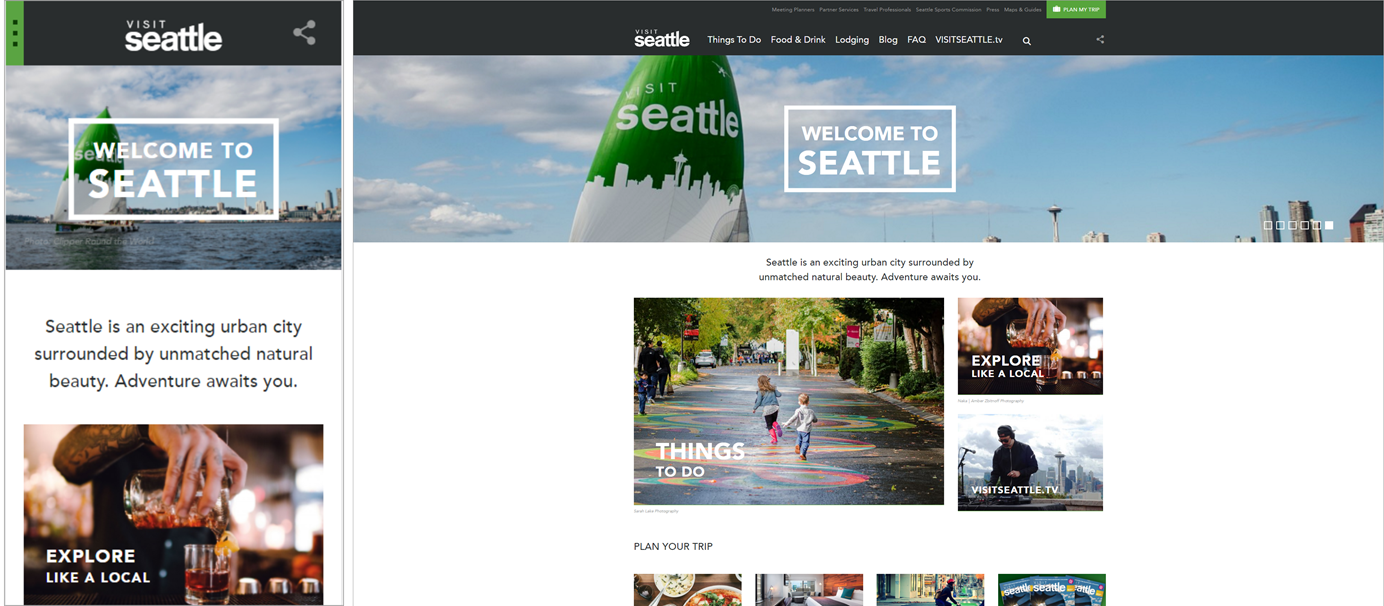
To keep images from becoming disproportionately large, some designs constrain the height of the image, expanding only the width. This approach effectively crops the image vertically and can keep more items visible on the screen without scrolling, but the resulting image may lose meaning if it is poorly cropped.
Common Problem #3: Repositioning
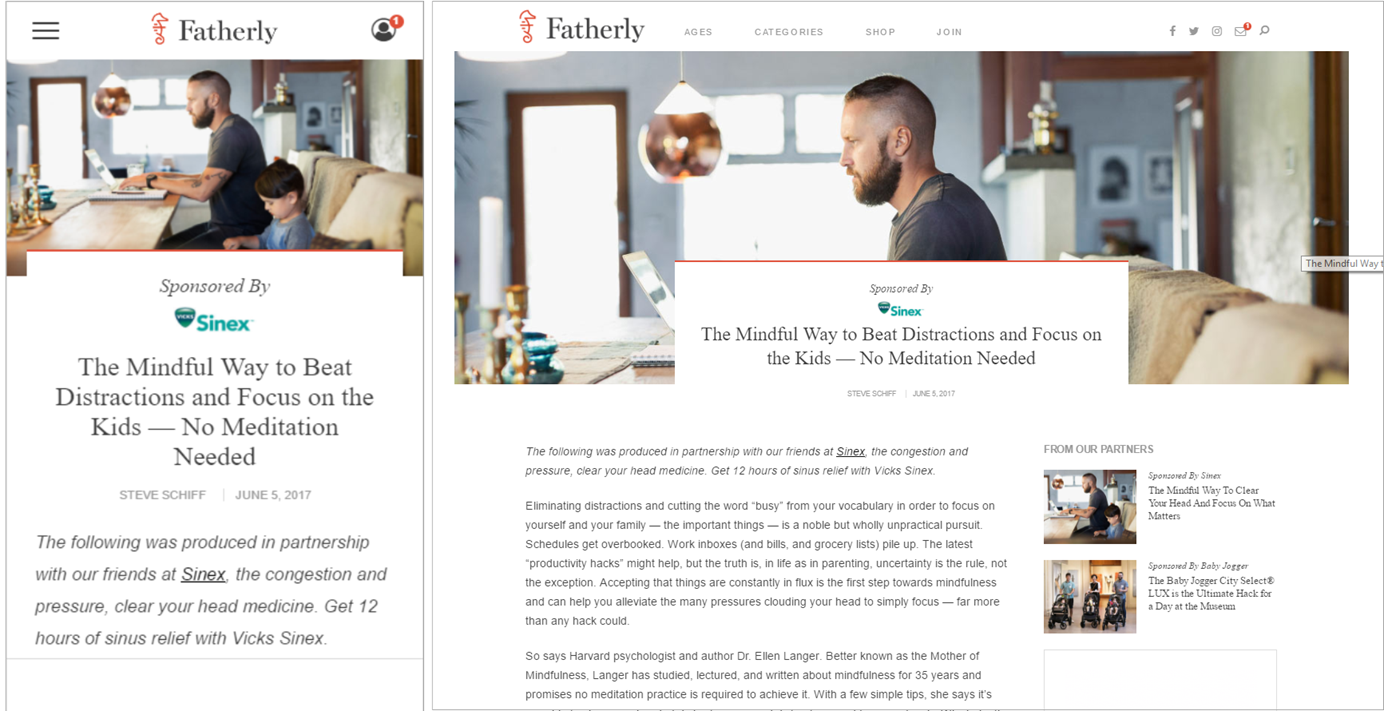
As images grow to fit larger screens, their relationship to other elements on the screen may change or shift. Pictures may become oddly framed or may overlap with other page elements, losing meaning or effectiveness.
Solution #1: Scale and Crop
Pay attention to the details of scaling and cropping an image. In most cases, an image should not simply scale up to fill a larger screen. Restricting only the height can result in a poorly cropped image. Instead, combine scaling and cropping to ensure that the resulting image remains appropriately sized, retains its meaning, and fits the screen dimensions appropriately.
For example, as the screen gets wider, scale the image up in width, height, or both, but stop before the image becomes either disproportionately large or hard to understand. Then, crop the image so it works in the new screen dimensions and start expanding this version until the image needs adjusting. Width, height, and aspect ratio may change as the dimensions of the page change.
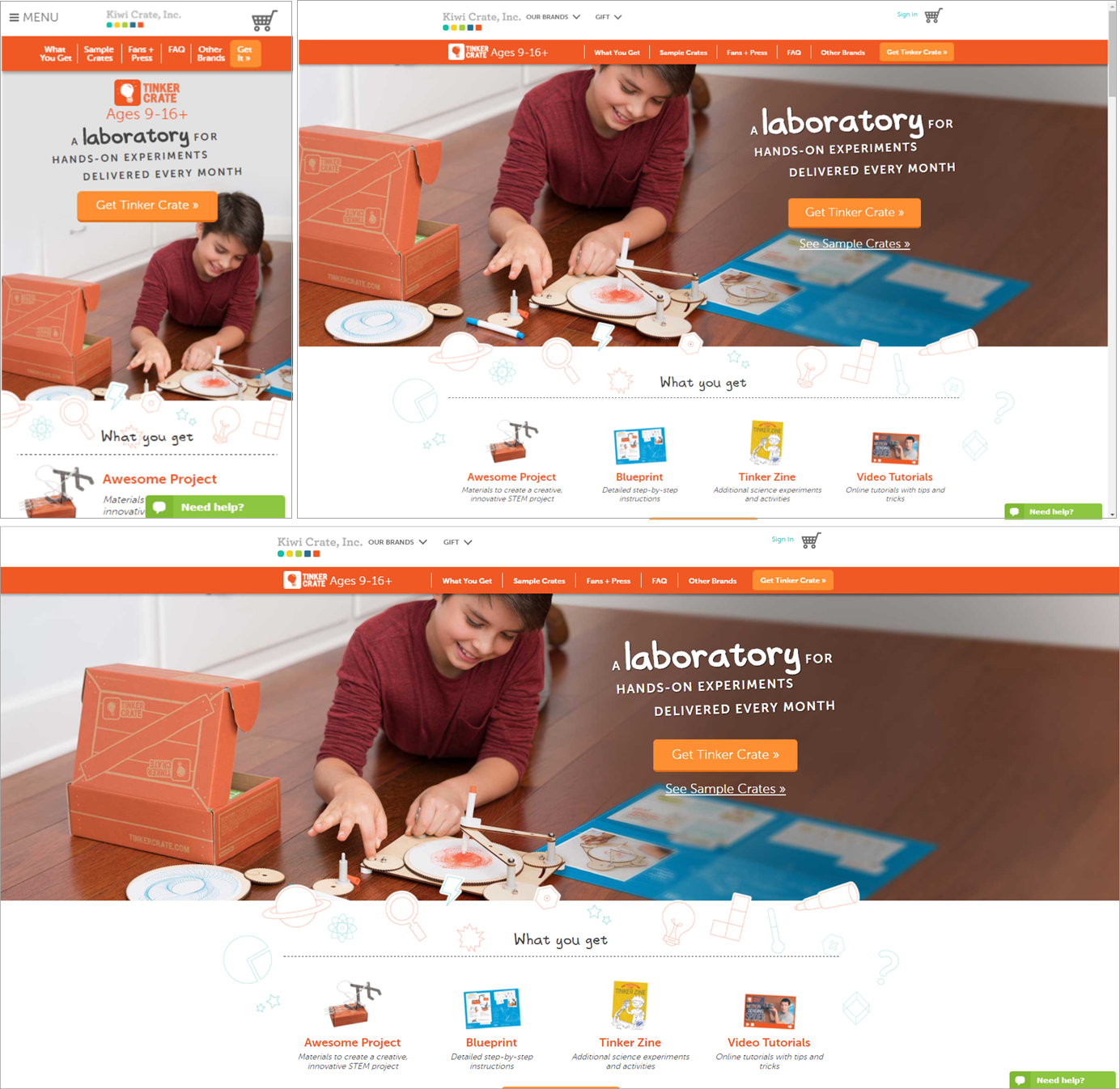
A screencast showing the changes in the image on KiwiCrate's site as the screen width increases. (0:12)
Solution #2: Use Images that Work in Different Aspect Ratios and Dimensions
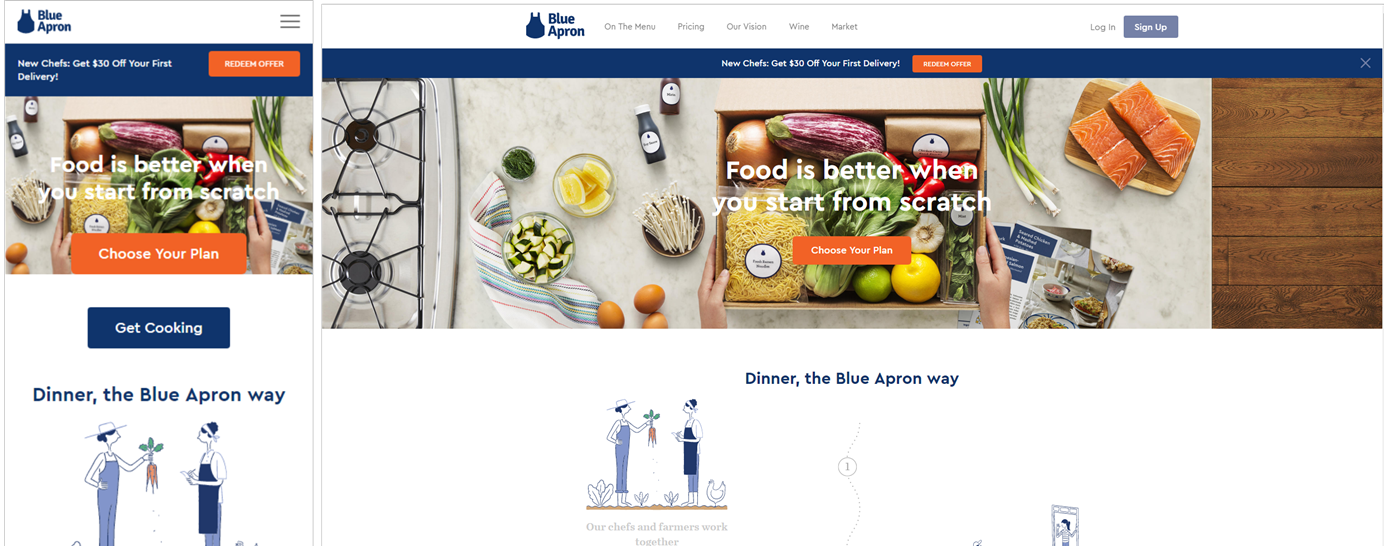
If your site must work across multiple screen sizes, design with those various dimensions in mind. Select images that will work well on different devices. Ask the following questions:
- Can the image look good at a variety of aspect ratios?
- Is the image large enough that it could be trimmed from the top, bottom, or sides without impacting the meaning of the picture significantly?
- Is there a central feature in the image that you need to keep visible as screen size changes?
- Is the image necessary at each screen size: does it add enough value to justify the space it takes in the design?
Solution #3: Set a Maximum Dimension for the Image
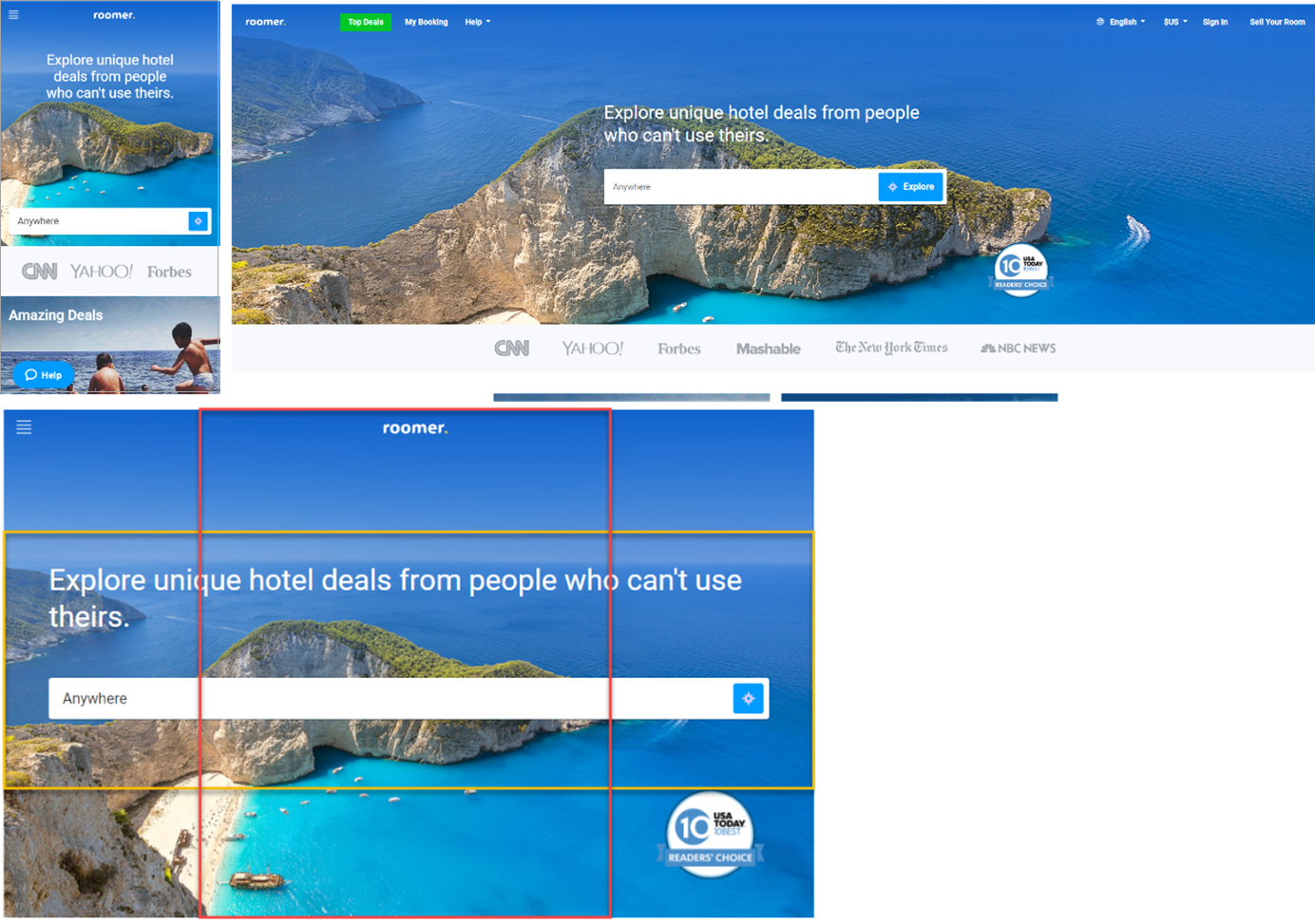
There may be a dimension beyond which your image won’t work well. In that case, you can restrict the image size on the page. Scale and crop until the image loses meaning or quality, and then frame it with white space or content that can fill a wider screen monitor.
Solution #4: Swap or Remove Images
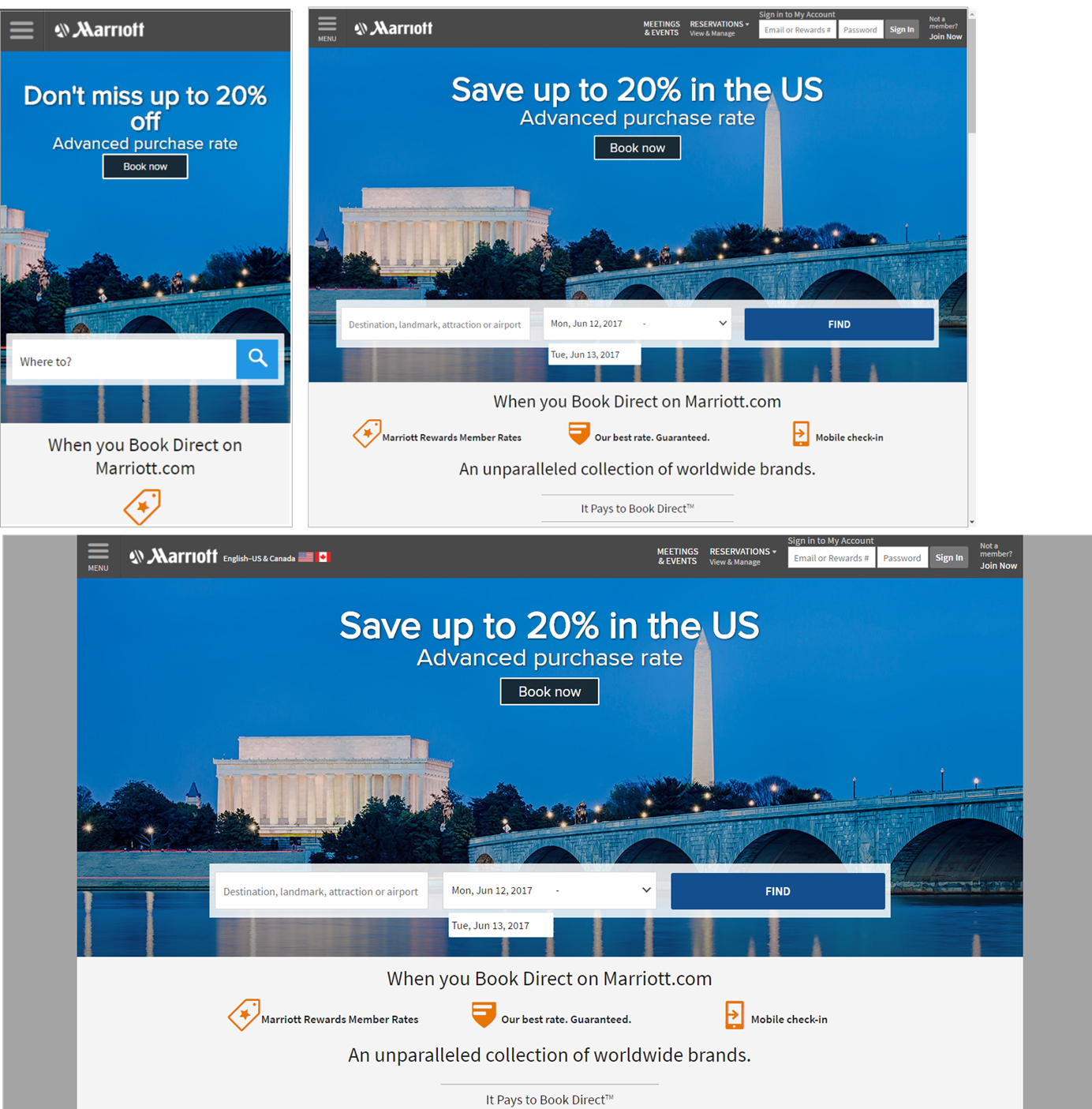
Another option is to choose different images for different screen sizes, picking images that work well for specific aspect ratios or ranges of height and width. In fact, you may find that at some screen sizes, the design is more effective without an image at all.
For example, the image on the Marriott site shown above worked well in a horizontal orientation with a wide aspect ratio, but did not translate well on a mobile site with the image cropped to a square. The site could have used, for instance, an image of the U.S. Capitol dome, or any other representative image that would fit the small, square container.
It’s often too expensive to commission multiple photographs, but if you have a rich set of images to choose from, use different photos if you can find ones that will have optimal impact under different screen size conditions.
Don't Only Design for the Breakpoints
Designers and developers can overlook the issues described here if they only design, develop, and subsequently view their designs on a single monitor, or only on devices with their target breakpoints. See what your design looks like at those in-between sizes or on widescreen displays. While you may be optimizing for certain device types, you also need to create a design that is usable and meaningful regardless of device or screen size.
Learn more in our day-long course on designing for different screen sizes.


